Upgrade Your Game, Slash Your Spend

Leave Your Message

0%

Picking the right wired mousefor your office isn't just about price tags and how many buttons it has—honestly, that's the easy part. A good daily driver needs to feel comfortable in your hand, track accurately, and keep performing reliably even after hours of clicking. If you're handling procurement, you'll want to look at things like sensor quality, how the Mouse fits your grip, whether the cable gets tangled easily, overall build, warranty, and whether it actually works with your OS. The little things can make or break the experience. You know that thing where a stiff cable just drags across your desk? Or when someone's loud click echoes through the whole office? And a badly shaped shell—man, that can make your wrist ache before lunch even rolls around.

Honestly, specs only tell you so much. You really need to put potential mice through their paces in the actual office. Have people try the finalists with spreadsheets, design apps, tons of browser tabs, and video calls. Pay attention to comfort, tracking stability, click consistency, and how easy they are to clean. Logitech, Dell, and Microsoft each have their strengths, but just because a brand is well-known doesn't mean it's the right fit. No single mouse wins every test. That’s worth remembering. Honestly, lightweight mice are great — they feel snappy and quick — but you kind of wonder if they'll hold up over time. Heavier ones? They feel solid, sure, but after a lot of moving around, your wrist starts to notice. And beyond weight, you've got to think about the practical stuff: how many USB ports are free, how long the cable actually is, what the replacement policy looks like, and whether left-handed or right-handed users can actually use it comfortably. In some secure spaces, wired is the safer bet — though it's not a magic bullet that fixes every risk. The best call is really about balancing what your employees like, what the data says, what you can afford, and whether you'll be able to support it for the long haul. Honestly, sometimes the best option isn’t the one with all the bells and whistles. It’s just that one mouse that quietly does its job, day after day, without ever making a fuss. You don’t even really notice it, but it’s always there when you need it.
How to Choose the Best Wired Mouse for Business?

Business Workflows and Wired Mouse Requirements

Business workflows determine Wired Mouse requirements more clearly than personal preferences. In office testing, I watch how employees move between spreadsheets, browsers, ticketing systems, and video calls. Each task changes the ideal shape, cable length, and button layout. Speed is not everything. A stable sensor, predictable clicks, and low-friction movement reduce interruptions during repetitive work.

The Microsoft Work Trend Index Annual Report 2023 found that 62% of workers struggle with too much time spent searching for information. That finding supports a practical design choice: assign programmable buttons to approved shortcuts, navigation, or frequently used commands. However, extra buttons can create errors when teams share computers. A wired connection also avoids battery checks and pairing delays, which matter at busy reception desks and finance stations. Test the cable path carefully; a short lead can pull the mouse during a turn.

Ergonomics deserves equal attention. The U.S. Bureau of Labor Statistics reported that computer-related work remains widespread across office occupations, increasing the importance of repeated hand movements. Choose a mouse that fits the user’s grip, not the procurement spreadsheet. A Wired Gaming Keyboard And Mouse may offer precise tracking, but aggressive shapes and bright lighting can distract in professional settings. I have seen employees reject technically capable devices after one uncomfortable afternoon. That experience is easy to dismiss, yet it exposes a weakness in many evaluations: specifications cannot measure every workflow. Small details matter.

Sensor Accuracy, Tracking Surfaces, and Cursor Control

Choosing the best wired mouse for business starts with sensor accuracy, not appearance. A reliable sensor should move the pointer smoothly across spreadsheets, design files, and detailed dashboards. Test small movements near screen edges. Any skipping or sudden acceleration can slow careful work. Wired connection also reduces battery concerns and usually keeps cursor response consistent during long office sessions.

Tracking surfaces matter more than many buyers expect. A mouse may perform well on a clean desk but hesitate on glass, polished wood, or uneven laminate. Test it where you actually work. Dust can also affect movement, so clean the surface regularly. Cursor control depends on more than sensor quality; weight, grip shape, cable flexibility, and adjustable sensitivity all influence precision. I once preferred a lighter mouse, then found it unstable during fine spreadsheet selections. Personal testing remains important.

Tips: Try the mouse with your usual monitor setup. Check whether the cursor stops exactly where intended. Use moderate sensitivity before increasing speed. Wired Keyboard And Mouse Gaming products may offer fast tracking, but office comfort and control should guide the decision. Avoid assuming higher specifications guarantee better results. That assumption sounds reasonable, but real desks often prove otherwise. Record any wrist fatigue after several workdays, because a brief store test cannot reveal every practical problem.

Ergonomic Shape, Grip Styles, and Long-Term Comfort

How to Choose the Best Wired Mouse for Business?

Ergonomic Shape, Grip Styles, and Long-Term Comfort

A business mouse should fit your hand before it impresses your desk. During long spreadsheet sessions, I notice pressure first near the thumb and wrist. A gently sloped body can reduce that strain. However, “ergonomic” does not mean comfortable for everyone. Hand size, desk height, and daily habits all change the experience.

Palm-grip users usually prefer a fuller mouse that supports most of the hand. It should feel stable without forcing the fingers outward. Fingertip-grip users often need a shorter, lighter shape for quick movements. Claw-grip users may benefit from a raised rear section and clear side support. Test the buttons carefully. They should click without requiring a hard squeeze.

A wired connection removes battery worries and keeps the mouse ready for busy workdays. Still, the cable must bend easily and avoid pulling across the desk. I once chose a comfortable shape with a stiff cable, and the repeated tug became distracting. That mistake changed my testing routine. I now use a mouse for at least twenty minutes before judging it. I also check whether my wrist stays neutral when reaching for the buttons. Small discomfort can become a daily problem. A soft surface helps, but it cannot fix a poor fit. Be honest about your posture. The mouse may not be the main cause.

Connection Types, Cable Design, and Desk Compatibility

Choosing the best wired mouse for business starts with connection reliability, not flashy specifications. USB-A remains common in office desktops, while USB-C suits newer laptops and docking stations. The USB Implementers Forum states that USB 2.0 supports up to 480 Mbps, far beyond a mouse’s actual needs. Speed is rarely the issue.

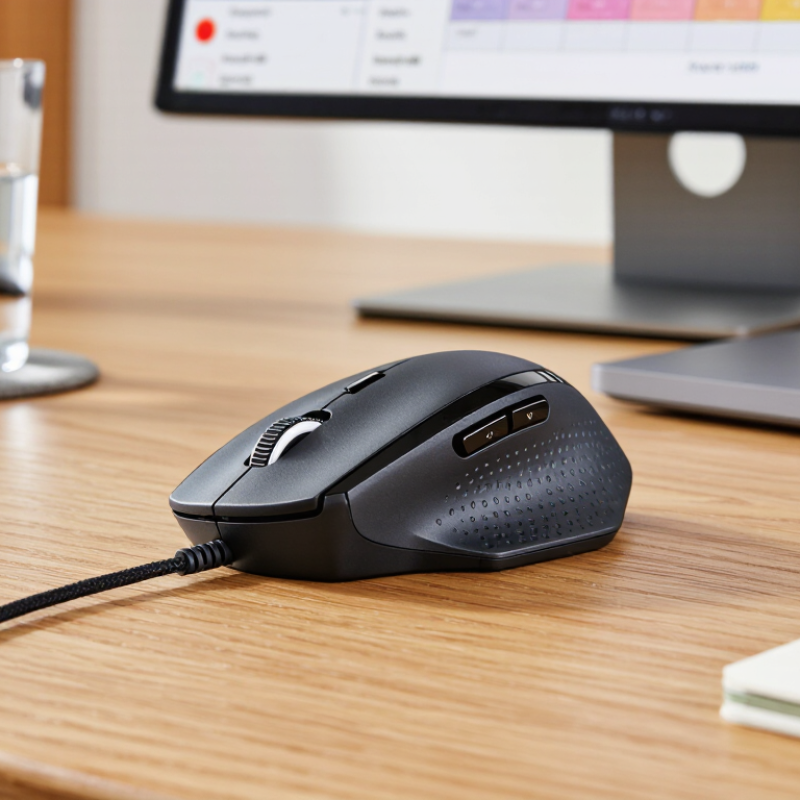
Cable design matters more than many buyers expect.A braided cable can resist daily bending, but it may feel stiff beside a Keyboard. A soft, flexible cable reduces drag across a narrow desk. Leave some slack near the computer. Tight cables pull the mouse unexpectedly. The U.S. Occupational Safety and Health Administration advises keeping input devices close, helping reduce reaching and awkward wrist angles. My own desk tests show that a short cable can be more troublesome than a slower sensor.

Desk compatibility also depends on surface, space, and workstation layout. A compact desk needs controlled movement, while a large shared desk benefits from longer reach. A Wired Gaming Mouse may offer accurate tracking, but business users should also check noise, grip comfort, and cable routing. The 2023 Global Workplace Survey from a leading workplace research institute reported that employees value workplaces supporting different work modes, a useful reminder for shared desks. I would not choose solely by specifications. Test the cable beside the monitor stand, docking station, and keyboard before purchasing. Small details decide comfort.

Buttons, Customization, and Productivity Features

Choosing a wired mouse for business starts with the buttons, not the lighting. The 2023 Work Trend Index reported that employees spend 62% of their time communicating, searching, or coordinating work. Programmable buttons can reduce those repeated actions. Assign copy, paste, screenshots, or application switching to reachable controls. Keep essential commands near the thumb. Too many buttons can create hesitation.

Customization should support real workflows. A finance analyst may need precise scrolling through long sheets. A designer may prefer adjustable sensitivity for detailed selections. A customer-service worker could benefit from a quiet middle click and a shortcut for ticket templates. The 2023 Anatomy of Work report found that 58% of employees’ time goes to “work about work.” Small control changes may recover useful minutes. They may also introduce mistakes. Test every shortcut for a week.

Comfort and reliability matter during long sessions. Look for a stable cable, consistent tracking, and a shape that does not force the wrist outward. ISO 9241-410 provides guidance for the design of physical input devices, but standards cannot predict every hand. Try the mouse with your usual keyboard. Search terms such as Keyboard And Mouse Wired Gaming may reveal highly customizable models, yet gaming features are not automatically productive. My own practical rule is simple: every extra button should earn its place. Some do not.

Durability, Maintenance, Security, and Total Cost of Ownership

How to Choose the Best Wired Mouse for Business?

A business mouse should survive repeated use, tight desk spaces, and hurried unplugging. Look for a reinforced cable, firm strain relief, and switches rated for heavy clicking. The shell should resist surface wear and remain comfortable during long spreadsheet sessions. Cable quality matters. A stiff cable can drag across the desk and encourage users to replace an otherwise reliable device.

Maintenance affects productivity more than many purchasing teams expect. Choose a shape that is easy to wipe and has few dirt-trapping gaps. Optical tracking usually needs little attention, but dust can still affect performance. Keep spare units nearby. Standardizing one or two designs also simplifies cleaning, storage, and employee support. However, no device lasts forever. Even durable switches may fail earlier in busy reception areas or shared workstations.

Security deserves practical attention. A wired connection reduces wireless exposure, but USB peripherals still belong in an organization’s device-control policy. Record asset details, restrict unauthorized hardware where appropriate, and inspect returned equipment before reuse. Total cost includes purchase price, replacement frequency, cleaning time, help-desk tickets, and lost minutes from poor tracking. A cheap mouse can look efficient on a spreadsheet. That view is incomplete. Calculating downtime over twelve months often changes the decision, although estimates may be imperfect and should be reviewed against real usage data.

How to Choose the Best Wired Mouse for Business? - Durability, Maintenance, Security, and Total Cost of Ownership
Practical comparison based on typical wired USB mouse specifications and a three-year business-use cost model.
Evaluation Dimension Entry-Level Office Model Business Standard Model Ruggedized Business Model What to Look For
Typical purchase price US$10–20 US$20–40 US$40–80 Compare price with expected service life, warranty, and replacement labor.
Expected service life About 18–30 months About 30–48 months About 48–72 months Prefer documented switch-cycle testing and replaceable or reinforced cable assemblies.
Button durability Typically 3–5 million clicks Typically 5–10 million clicks Typically 10 million or more clicks A higher rated cycle count is useful for shared workstations and high-frequency users.
Cable construction Standard PVC cable; usually 1.5–1.8 m Reinforced PVC or braided cable; usually 1.8–2.0 m Strain-relieved or highly reinforced cable; usually 1.8–2.2 m Check bend resistance, connector strain relief, and cable routing requirements.
Tracking and resolution Optical sensor; commonly 800–1,600 DPI Optical sensor; commonly 1,000–3,200 DPI Optical sensor; commonly 1,000–5,000 DPI For office work, stable tracking and low lift-off behavior matter more than maximum DPI.
USB connection USB-A, plug-and-play HID USB-A, plug-and-play HID; some models include USB-C compatibility USB-A or USB-C, plug-and-play HID Confirm compatibility with docking stations, thin clients, and managed endpoints.
Security exposure No wireless radio; still requires USB access control No wireless radio; lower attack surface than wireless peripherals No wireless radio; suitable for restricted environments when USB is controlled Wired does not eliminate USB risks. Apply device control, endpoint policies, and physical port restrictions.
Driver and software dependency Usually none for basic pointing Usually none; optional configuration software may be available Usually none; configuration software should be avoided on locked-down systems Select standard HID operation when minimizing software and administrative overhead.
Cleaning requirement Surface cleaning weekly; detailed cleaning monthly Surface cleaning weekly; detailed cleaning every 1–2 months Surface cleaning daily or per shift in shared areas; detailed cleaning monthly Use manufacturer-approved cleaners and keep liquid away from openings and switches.
Maintenance time assumption About 6 minutes per month About 4 minutes per month About 3 minutes per month Include cleaning, inspection, cable checks, inventory handling, and user support.
Ergonomic suitability Basic ambidextrous or compact shapes More size options and improved palm support Designed for extended use, shared desks, or demanding environments Match shape and size to hand dimensions, grip style, and daily usage duration.
Warranty expectation Typically 1 year Typically 2–3 years Typically 3–5 years Verify coverage for switches, cable failure, accidental damage, and business deployment.
Estimated three-year purchase cost per workstation About US$20–40, assuming one replacement About US$20–40, assuming no replacement About US$40–80, assuming no replacement Use actual procurement price and replacement history for a precise forecast.
Illustrative three-year total cost of ownership Approximately US$35–55 Approximately US$30–50 Approximately US$50–90 TCO includes purchase, routine maintenance labor, and estimated replacement downtime.
Best fit Low-use personal desks and short-term deployments Most general office, education, and administrative environments Shared workstations, call centers, reception desks, laboratories, and industrial offices Choose according to usage intensity, security controls, cleaning frequency, and replacement logistics.
TCO calculation basis: The illustrative three-year estimate assumes an internal labor rate of US$25 per hour, regular cleaning, and a small amount of user downtime during replacement. Actual results vary with workload, cleaning procedures, procurement pricing, warranty claims, and endpoint-management policies.

Dual-Mode Wireless Keyboard and Mouse Set: A Smarter Setup for Comfortable, Flexible Computing

A dual-mode wireless keyboard and mouse set creates a smarter, more flexible workspace for modern computing. With both 2.4GHz wireless and Bluetooth connectivity, the keyboard can switch smoothly between compatible devices, making it easier to move from a desktop computer to a laptop or other supported device without constantly changing accessories. This flexibility helps keep work areas organized while supporting different daily tasks.

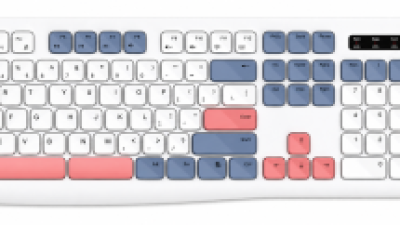
Designed for extended use, the 105-key keyboard features an ergonomic layout with split keycaps and dual spacebars. These details create a more natural typing position and may help reduce wrist strain during long writing, browsing, or office sessions. The matching wireless mouse complements the setup with three adjustable DPI levels, allowing users to choose a cursor speed that suits detailed work, general navigation, or faster screen movement.

Practical construction supports dependable everyday productivity. The splash-resistant design adds protection against minor spills, while CE, FCC, and RoHS certifications reflect compliance with recognized safety and environmental requirements. Together, the comfortable layout, adaptable connectivity, and adjustable mouse control provide a convenient setup for users who want a cleaner, more comfortable way to work across multiple devices.

FAQS

What should I test first when choosing a wired business mouse?

Test sensor accuracy first. Move slowly near screen edges and watch for skipping or sudden acceleration.

Why does the tracking surface matter?

A mouse may work on a clean desk but hesitate on glass, polished wood, or uneven laminate. Test it on your actual surface.

How can I improve cursor control?

Use moderate sensitivity first. Adjust weight, grip shape, cable flexibility, and sensitivity together. Test it there.

Does a wired connection improve office work?

It avoids battery concerns and usually keeps response consistent during long sessions. Cable placement still matters.

How should programmable buttons support productivity?

Assign repeated actions such as copying, pasting, screenshots, or switching applications. Keep essential controls near your thumb.

Can too many buttons reduce efficiency?

Yes. Extra controls may cause hesitation or accidental clicks. Every button should earn its place. Some do not.

How can I judge comfort during a short test?

Use the mouse with your usual keyboard and monitor. Check whether your wrist bends outward or feels tense.

Should I trust technical specifications completely?

No. Higher specifications do not guarantee better control on your desk. Personal testing may reveal unexpected problems.

How long should I test custom shortcuts?

Use each shortcut for about a week. Track mistakes, saved time, and whether the command feels natural.

What practical problem might appear after several workdays?

Wrist fatigue may emerge after extended spreadsheet work. A brief store test cannot reveal everything. That deserves reflection.

Conclusion

Choosing the best Wired Mouse for business starts with matching the device to daily workflows, including office applications, data entry, design tasks, and extended periods of navigation. Sensor accuracy and reliable tracking are essential for precise cursor control across different desk surfaces, while an ergonomic shape should support the user’s preferred grip style and reduce hand, wrist, and finger fatigue. A suitable cable length, flexible design, and connection type can also improve desk compatibility and prevent workspace clutter.

Productivity features should be evaluated according to actual business needs. Programmable buttons, adjustable sensitivity, and shortcut support may streamline repetitive tasks, but unnecessary functions can add cost and complexity. Long-term value also depends on durable construction, easy cleaning, dependable performance, and simple maintenance. Businesses should consider security, shared-workspace requirements, replacement policies, and total cost of ownership to ensure the selected Wired Mouse remains comfortable, efficient, and reliable over time.

Sophie

Sophie

Sophie is a dedicated professional at Shenzhen DeWin E-commerce Co., Ltd., where she excels as a marketing specialist. With a strong expertise in the company's product offerings, she plays a critical role in enhancing the brand's presence in the competitive e-commerce landscape. Throughout her......
Previous China Top 10 Optical Mouse Office Manufacturers?