Upgrade Your Game, Slash Your Spend

Leave Your Message

0%

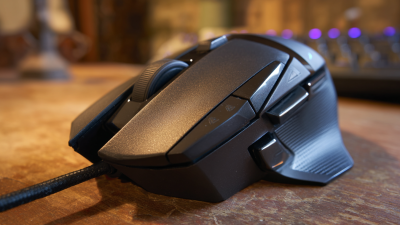
Honestly, a wired mouse can be a pretty practical choice—whether you're working, gaming, or just browsing. No battery anxiety, and the connection is rock solid. But that cable? It has a knack for catching on desk edges or making you feel tethered. So which one's best? That really depends on your hand, your habits, and your whole setup. And the small stuff matters more than you'd think. That shape that looked perfect in the product photos? It might be pressing against your palm two hours into a workday.

Before you settle on a Mouse, there are seven things worth checking out: how it feels in your hand, the sensor, adjustable DPI, button layout, switch feel, cable design, and whether it works with your devices. Honestly, the best approach is to think about what you're actually going to be doing with it. If you're a student taking notes, you'll probably want quiet clicks and a smooth scroll wheel. If you're a gamer, you might care more about consistent tracking and snappy buttons. DPI numbers are useful for comparing specs, but don't get too hung up on them—a higher number doesn't automatically mean better control. Honestly, fit matters more than people give it credit for. You can have the priciest outfit, but if it doesn’t fit right? It just falls flat.

Honestly, cable length, flexibility, and the type of connection matter more than you’d think—especially if your computer’s tucked under a desk or you’re working with limited ports. Don’t just skim the star ratings either. Dig into the manufacturer’s specs, check the warranty, and look for reviews from people who’ve actually used the thing for a while. And here’s something that’s easy to overlook: extra buttons can be a lifesaver, but if they’re placed awkwardly, you might end up clicking them by accident all the time. Look, this isn't some perfect checklist—everyone has their own tastes, and product descriptions have a way of glossing over the little annoyances you only notice in real life. So use these seven tips as a starting point to narrow things down, then let your own comfort and performance needs be the final judge.
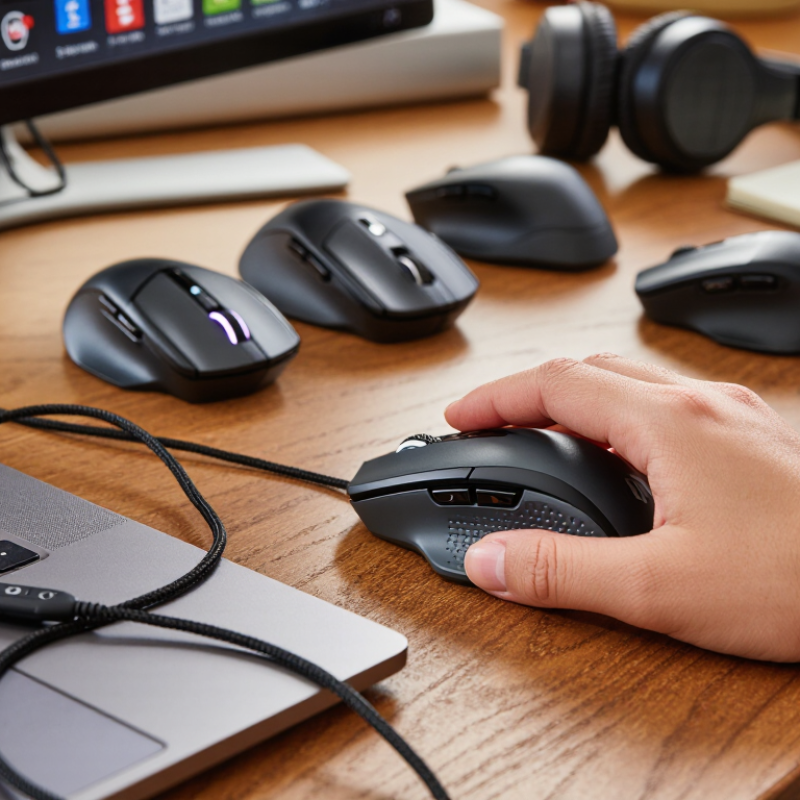
7 Tips for Choosing the Best Wired Mouse

Define your grip and fit, using ISO 9241-410 as an ergonomic reference

Before comparing buttons or sensor claims, notice how your hand naturally rests. A palm grip usually needs enough length to support the heel of your hand. With a claw grip, a shorter shape may let your fingers arch without constant squeezing. For fingertip control, check that the mouse does not push your wrist sideways. Small details matter. Rest your forearm on the desk, relax your shoulder, and move the mouse across the space you actually use. If your fingers reach awkwardly for the wheel, the fit may be wrong, even if the shell feels comfortable at first.

Use ISO 9241-410 as an ergonomic reference, not a pass-or-fail label for a particular mouse. It offers design criteria for physical input devices, helping you assess posture, reach, and ease of operation. Try the mouse in your usual position, with its cable routed as it would be at your desk. A cable that catches on a notebook can change your wrist movement. A brief test can mislead; comfort may shift after an hour of repeated clicking. Pay attention to pressure points, and be willing to reconsider your first impression. Your grip can also change during the day.

Match polling rate to your needs: 1,000 Hz equals a 1 ms report interval

Polling rate is how often a mouse reports its position to a computer. At 1,000 Hz, the interval is 1 millisecond; at 500 Hz, it is 2 milliseconds. USB-IF’s USB 2.0 specification defines high-speed USB microframes as 125 microseconds, but that transport timing does not guarantee equally fast on-screen movement. A 144 Hz display refreshes about every 6.94 milliseconds, so the mouse is only one part of the response chain. That is fast. Still, a higher polling rate cannot erase delays from the game, operating system, or display.

For fast-paced games, 1,000 Hz is a sensible starting point if the computer maintains stable performance. For everyday browsing and office work, 500 Hz—or even lower—can feel just as responsive. Try both settings on the same desk surface and notice whether movement feels consistent, not merely quick. I may be giving the number too much credit: a steady cursor matters more than a setting you cannot feel. If a Wired Gaming Keyboard And Mouse setup serves several tasks, keep the rate that feels reliable across them.

Compare sensor resolution and tracking speed, measured in CPI and IPS

CPI describes how many counts a mouse reports per inch of movement; IPS measures the speed it can track without losing motion. They answer different questions. A high CPI setting can move the pointer across a screen with a small hand motion, but it does not guarantee accurate tracking.

RTINGS’ mouse testing methodology treats CPI deviation and maximum tracking speed as separate measured results, a useful reminder to compare real measurements rather than headline numbers. Check whether the tested CPI closely matches the selected setting, and whether the sensor’s IPS rating fits quick swipes on your desk.

For ordinary office work, a stable range around 800–1,600 CPI is often easier to control than an extreme setting. Gaming preferences vary, so test the mouse at your usual sensitivity on a familiar surface. Fast, wide movements make IPS more relevant; a low-rated sensor may briefly lose tracking during a sharp flick.

Look for independent testing that reports both values and describes its test surface and method. Details matter.

A spec sheet is not the whole story. Cable drag, surface texture, and your own grip can change how tracking feels. Even a strong sensor may feel inconsistent on a glossy desk.

Wired Keyboard And Mouse Gaming setups should also allow enough cable slack for broad movements.

One caveat: independent test results may differ from your exact unit, and CPI alone can distract from comfort. I would not chase the largest number. A simple repeat test often reveals more.

Check USB compatibility across low-speed (1.5 Mb/s) and full-speed (12 Mb/s)

Before buying a Wired Gaming Mouse, check which USB speed it supports. Low-speed USB runs at 1.5 Mb/s, while full-speed USB runs at 12 Mb/s. These figures describe the connection’s signaling rate, not how quickly the pointer moves. Many standard mice use low-speed USB; some models may need full-speed support for higher report rates. Check the product specifications rather than guessing from its shape or cable.

Your computer’s USB port, any hub, and the mouse must work together. Newer USB ports commonly support older devices, but a hub or adapter can complicate things. Try connecting the mouse directly to a port, then test it on the computer you plan to use. Watch for missed clicks, a cursor that pauses, or a device that reconnects unexpectedly.

Small clues matter. I used to treat every USB port as interchangeable; that assumption can waste time when troubleshooting.

If the specifications are unclear, ask the seller or manufacturer whether the mouse operates at low-speed or full-speed USB. Also check whether its advertised polling rate requires a particular port or setup.

Choose a cable length suited to your setup; USB 2.0 supports runs up to 5 m

A Wired Mouse works best when its cable reaches comfortably without looping across your desk. Measure the route from the computer’s USB port to your usual hand position, then add a little slack for movement. Too much cable can snag on a monitor stand; too little can tug during quick turns. Small detail, big difference. The USB Implementers Forum’s USB 2.0 specification sets a maximum cable segment length of 5 meters. Treat that as a technical limit, not a target for every desk.

Tips: Check where the cable will run before buying. A 1.5-meter lead may suit a compact setup, while a tower under the desk may need more reach. Keep the cable away from chair wheels and sharp desk edges. If you need a longer route, a compliant powered hub may help, but extra connections can add clutter. Measure twice.

For Keyboard And Mouse Wired Gaming, leave enough slack for broad swipes, then secure excess cable with a reusable tie. Don’t pull it tight against the port. I sometimes underestimate how far my mouse travels during play, so a quick desk test is worth doing. It is not a perfect measurement, but it catches obvious snags. Check the cable’s path again after moving your monitor or Keyboard.

Compare switch durability using manufacturer click-life ratings, such as 20 million

A switch-life rating is a useful starting point, not a guarantee. A specification of 20 million clicks means the switch was rated for that many actuations under stated test conditions. Check whether the maker’s data sheet defines the test force, speed, and failure criteria. Without those details, two “20-million-click” ratings may not be directly comparable. Numbers need context.

IEC 61058-1:2016 describes endurance testing for switches, but its publication does not automatically certify a computer mouse or validate every advertised rating. Treat the figure as a lab measure, then consider your own use: rapid gaming clicks, dusty desks, and hard presses can all differ from controlled testing. A gentle click is not the same as a forceful one. I would compare the rating alongside warranty terms and the switch’s feel, rather than choose by the largest number alone. That judgment is imperfect; feel can change with wear, and a durability figure cannot predict every failure.

Confirm software and operating-system support before buying

A wired mouse may move the pointer as soon as its cable is connected, but that does not guarantee every feature will work. Extra buttons, scrolling adjustments, or saved profiles may depend on separate software. Check the seller’s specifications for your exact operating system and version. Small detail.

Look for clear notes about supported systems, required drivers, and whether the utility works on older computers. If you use a work-managed device, you may not have permission to install software. Ask an administrator before buying if configuration tools are important. A basic mouse can still function, but its extra controls may stay at their default settings.

I used to treat “plug and play” as a complete compatibility check; that was too casual. A quick test is to find the setup instructions before purchase and see whether they list your system. Also check when the support page was updated. An old download link or vague wording deserves caution. If you need a side button for a daily task, confirm that the operating system can assign it without an unsupported utility. Keep the receipt until you have tested the pointer, wheel, and every button you plan to use.

FAQS

What do CPI and IPS measure?

CPI counts how many sensor reports occur per inch of movement. IPS measures how fast the sensor can track without losing motion.

Is a higher CPI always more accurate?

No. High CPI moves the pointer farther with a smaller hand motion, but it does not guarantee accurate tracking. Numbers need context.

What CPI range may suit ordinary office work?

Around 800–1,600 CPI is often easier to control. Your preferred setting may differ, so test it with your usual tasks.

When does IPS matter most?

IPS matters during quick, wide swipes. A sensor with a low tracking-speed rating may lose motion during a sharp flick.

What should independent sensor tests report?

Look for CPI deviation and maximum tracking speed. The test surface and method matter, too. Details matter.

Can a good sensor still feel inconsistent?

Yes. A glossy desk, rough surface, or tight cable can affect tracking and movement. Leave enough slack for broad swipes.

What does a 20-million-click rating mean?

It means the switch was rated for that many actuations under stated test conditions. Test force, speed, and failure criteria affect comparisons.

Does a switch-life rating predict how long my mouse will last?

Not precisely. Dust, hard presses, and rapid clicking differ from controlled tests. Compare the rating with warranty terms and switch feel; I may still give the number too much weight.

Conclusion

Choosing the best Wired Mouse starts with comfort: consider your grip and hand size, and use ISO 9241-410 as a reference for ergonomic fit. Match the polling rate to your needs; at 1,000 Hz, the mouse reports its position every 1 millisecond. Compare sensor resolution, measured in CPI, and tracking speed, measured in IPS, to find performance suited to your everyday tasks or gaming.

Also check that the mouse’s USB connection works with your device, including support for low-speed (1.5 Mb/s) or full-speed (12 Mb/s) USB where relevant. Choose a cable length that fits your desk setup; USB 2.0 supports cable runs up to 5 meters under suitable conditions. Review manufacturer switch-life ratings, such as 20 million clicks, and confirm that the required software and operating system are supported before buying.
Elena

Elena

Elena is a dedicated professional at Shenzhen DeWin E-Commerce Co., Ltd., where she excels as a marketing specialist. With a profound expertise in the company's products, she plays a pivotal role in communicating their benefits to a broader audience. Elena is passionate about sharing her knowledge......
Previous What Is a Gaming Keyboard?